Using Build Helper
This is the full path through a build: open an app, choose its environment and version, build the artifacts, and distribute them. It takes about a minute once your app is detected.
1. Launch and open the dashboard
Section titled “1. Launch and open the dashboard”Start Build Helper from the hub (node serve, then click Build Helper) or
standalone (node build-helper/server.js), and open
http://localhost:4095.
The Dashboard shows a KPI strip (Projects, Builds, Artifacts, Last build) with range / project / env filters and charts, and a project-health table — one row per Flutter app with its environment chips, version, health dot, last build, security grade, and a favorite ★. Sort by any column, drag rows to reorder, and press ⌘K to jump to an app or action. The nav’s ? starts a guided tour and ⬆ shows the version / update.
2. Open a Flutter project
Section titled “2. Open a Flutter project”Click a project’s Open (or its name) in the health table to open the Build screen for that app.
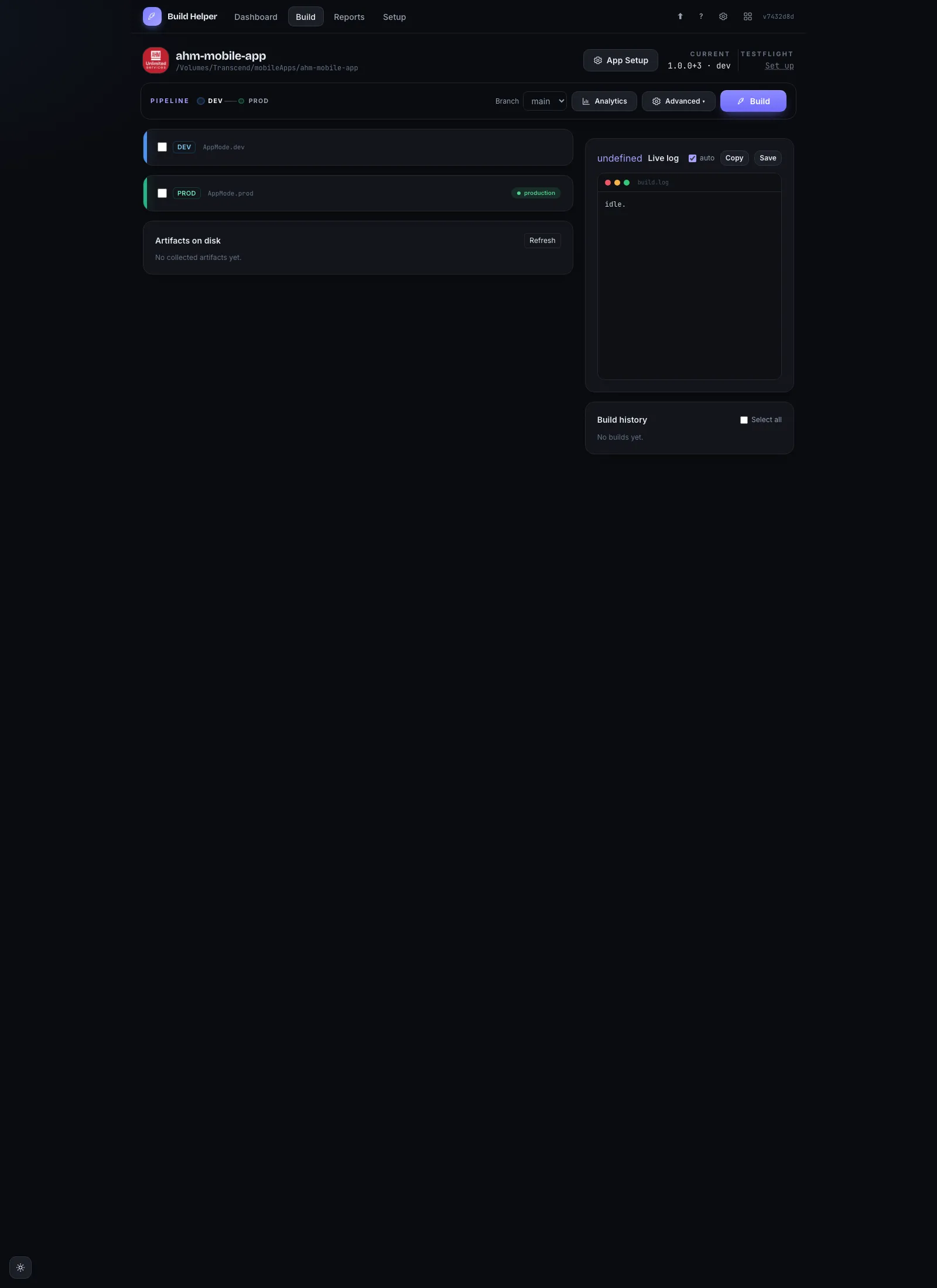
At the top you’ll see the app icon, name and path, an App Setup button, the Current version + environment, and TestFlight status. Below that is the pipeline (dev→demo→qa→prod), a Branch selector, Analytics and Advanced menus, and the Build button.
If a project is flagged Set up (no env detected), Build Helper couldn’t find
the app’s AppMode environment automatically — open App Setup (see step 3) or
App detection.
3. Choose environments and versions
Section titled “3. Choose environments and versions”Under Environments & version, tick the environment(s) you want to build —
DEV, DEMO, QA, PROD. Each environment has its own card with:
- Version name — the marketing version (defaults to the app’s current
version, for example
1.4.2); use M / m / p to bump major/minor/patch. - Build number — pre-filled with the next unused number, or tick auto.
- An outputs row (OneDrive / Firebase / Play + track / TestFlight) and a release-notes box with Template / Commits / Tasks fills and a Jira picker.
You can build more than one environment in a single run.
4. Pick the artifacts
Section titled “4. Pick the artifacts”Under 2 · Artifacts, choose what to build. APK is selected by default.
| Artifact | Use it for |
|---|---|
| APK | Android sideload / testers |
| AAB | Play Store bundle |
| IPA | iOS / TestFlight |
5. Set the build options
Section titled “5. Set the build options”Open the Advanced menu for the optional steps:
- flutter clean / pub get — preparation.
- analyze / test — gates (a failure stops the build unless gate: warn only is on).
- git commit + tag / git push — commit and tag the version bump.
- validate IPA / upload crash symbols — TestFlight validation and dSYMs.
A branch selector lets you check out a branch before building.
6. Choose distribution targets
Section titled “6. Choose distribution targets”Each environment card has its own outputs row — tick where that env’s build should go. These need to be configured once in Setup / App Setup first (see Signing & distribution).
- OneDrive — uploads every built artifact to your OneDrive folder.
- Firebase — sends the APK (or AAB) to Firebase App Distribution testers.
- Play — sends the AAB to Google Play on the selected track.
- TestFlight — sends the IPA to TestFlight.
Leave them all unticked to build locally without uploading anything.
7. Build
Section titled “7. Build”Click Build. The Live log panel streams every step — environment switch,
version write, flutter build, uploads — as it happens. Use Stop to cancel a
running build.
Before any long work starts, Build Helper runs a few safety checks and will pause if:
- the git tree has uncommitted changes,
- the build number was already used for that environment,
- you’re publishing a production build to a store, or
- a TestFlight version isn’t higher than what App Store Connect already has.
Each pause is an inline prompt — fix what it names, or click Build anyway
(or Use <version> for a low TestFlight version) to override just that guard
and re-run.
8. Check the result
Section titled “8. Check the result”When it finishes, a per-env summary card and the Recent builds list show the version, environment, duration, and which uploads succeeded. Click a build for its detail (artifacts, re-upload, TestFlight re-manage, Play rollback), or Share to generate a build card, copy text, email clients, or file a Jira release. Each build is also recorded in the dashboard KPIs and in Reports.
A realistic example
Section titled “A realistic example”You’re cutting a QA build of checkout-app at version 1.5.0:
- Open checkout-app from the dashboard.
- Tick QA, set the version name to
1.5.0, and accept the pre-filled build number41. - Tick APK (for Firebase testers) and leave AAB/IPA off.
- In Advanced, tick analyze and test so the build gates on a clean analysis and passing tests.
- On the QA card’s outputs row, tick Firebase.
- Click Build and watch the log switch to QA, write
1.5.0+41, build the APK, and push it to your Firebase testers.
Sharing a build with testers
Section titled “Sharing a build with testers”Every built artifact is served over your LAN. To install one on a phone on the same Wi-Fi, open the install page in a browser:
http://<your-LAN-ip>:4095/install?path=<artifact-path>It shows a QR code and a download button. On Android, open the page on the phone and allow installing from unknown sources.
The command line
Section titled “The command line”Build Helper is a Node server with no build step.
# Standalone (opens http://localhost:4095)node build-helper/server.js
# CI sanity check — loads the whole route/lib graph, no server, no networknode build-helper/server.js --selftest
A few environment variables tune it:
| Variable | Default | What it does |
|---|---|---|
PORT | 4095 | Port to listen on (moves up if it’s busy). |
FLUTTER_PROJECTS | ~/mobileApps | Where the dashboard looks for apps. |
FLUTTER_BIN | flutter | Path to the Flutter binary. |
RCLONE_BIN | rclone | Path to rclone (used for OneDrive). |
ONEDRIVE_REMOTE | onedrive | The rclone remote name for OneDrive. |
ONEDRIVE_BASE | Mobile apps | The base OneDrive folder for uploads. |