Features
This page lists everything Build Helper does. Each feature explains what it is and how you use it.
App detection
Section titled “App detection”What it does. Build Helper scans your projects root for folders that have a
pubspec.yaml and a lib/ directory, and lists each as an app on the
dashboard. For every app it reads the version from pubspec.yaml and works out
its environments: it finds the AppMode constant the app actually compiles
against, the file that defines it, and the enum AppMode { ... } members, then
maps them to the logical environments dev / demo / qa / prod (it treats
production as prod).
How to use it. Drop your Flutter projects under ~/mobileApps (or set
FLUTTER_PROJECTS) and they appear automatically. If an app shows needs
setup — no env detected, the AppMode constant or its defining file was
ambiguous — set the constant name, env file, and environments as a per-app
override so detection succeeds.
Environment switching
Section titled “Environment switching”What it does. Selecting an environment for a build rewrites the app’s
AppMode constant to the matching enum member in its env file. If the file has a
viewLog flag, it’s set false for production and true otherwise. If the app
has a firebase/ folder with the expected config files, the dev/prod
google-services.json and GoogleService-Info.plist are copied into place for
the selected environment.
How to use it. On the Build screen, tick the environment(s) you want. The switch happens automatically at the start of the build — you don’t run it separately.
Flavors and per-app build options
Section titled “Flavors and per-app build options”What it does. Per app, Build Helper can pass a Gradle/Xcode flavor
(--flavor <name>), extra flutter build arguments, and pre-build and
post-build shell commands that run around the build. Post-build commands get
the app name, repo, environments, and version as environment variables
(BH_APP, BH_REPO, BH_ENVS, BH_VERSION).
How to use it. These come from an app’s saved settings (flavor, build args, pre/post commands). Set them once and every build for that app uses them.
Version bump
Section titled “Version bump”What it does. For each environment it writes version: <name>+<number> into
pubspec.yaml. When you build an IPA it also patches the iOS project so the
archive picks up the right version: MARKETING_VERSION and
CURRENT_PROJECT_VERSION in the Xcode project, any literal versions in
Info.plist, the App.framework MinimumOSVersion, and it declares export
compliance (ITSAppUsesNonExemptEncryption = false) so TestFlight builds aren’t
stuck on “Missing Compliance”.
How to use it. Set the version name and build number per environment on the Build screen. Use the M / m / p buttons to bump major / minor / patch, or tick auto to let the build pick the next unused number for that environment (the max of the pubspec number and every number you’ve built before, plus one).
Builds
Section titled “Builds”What it does. Runs flutter build apk | appbundle | ipa --release for each
artifact you pick, in each environment you pick, one at a time. Only one build
runs at a time across the whole tool. The full pipeline per run is: optional
branch checkout → optional clean / pub get / analyze / test → pre-build
commands → then per environment: switch → write version → build → distribute →
record → post-build commands → security scan.
How to use it. Pick artifacts (APK / AAB / IPA) and options, then click
Build. Watch the Live log; use Stop to cancel. Each built artifact is
renamed to <app>-<env>-<version>+<number>.<ext>, copied into Build Helper’s
artifacts folder, and served over your LAN for install.
Build gates and the Advanced menu
Section titled “Build gates and the Advanced menu”What it does. The Advanced menu on the Build screen holds the optional steps that run around the artifact build:
- flutter clean and pub get run as preparation.
- analyze runs
flutter analyze; test runsflutter test— each fails the build unless gate: warn only is ticked. - git commit + tag commits the version bump and tags it; git push pushes.
- validate IPA runs a TestFlight validation pass; upload crash symbols sends iOS dSYMs to Crashlytics.
A branch selector lets you check out a branch before building.
Build guards
Section titled “Build guards”What it does. After you press Build but before any long work, Build Helper checks four things and shows an inline prompt if any fails:
- Version too low (TestFlight) — App Store Connect already has an equal or
higher marketing version than the IPA you’re uploading. Offers Use
<next patch>(which fills the suggested version) or Build anyway. - Duplicate build number — the build number was already used for that environment.
- Dirty tree — the repo has uncommitted changes (it lists them).
- Production publish — you’re sending a production build to a store or the production track; it asks you to Publish anyway.
How to use it. Fix what it names, or use the prompt’s Build anyway /
Use <version> button to override just that guard and re-run.
Distribution targets
Section titled “Distribution targets”Each environment card on the Build screen has its own outputs matrix — tick where that env’s build should go:
| Output | Where it goes |
|---|---|
| OneDrive | Every built artifact → your OneDrive folder |
| Firebase | APK (or AAB) → Firebase App Distribution testers |
| Play (+ track) | AAB → Google Play, on the selected track |
| TestFlight | IPA → TestFlight |
Leave them all unticked to build locally without uploading. Setup for each channel is covered in Signing & distribution.
OneDrive
Section titled “OneDrive”Uploads artifacts with rclone, using your own rclone config — Build Helper
never ships or fetches a shared account. Files land under
<remote>:<base>/<repo>/<env>/, and it fetches a share link for each file and the
folder when it can.
Firebase App Distribution
Section titled “Firebase App Distribution”Uses the Firebase CLI to distribute an APK (preferred) or AAB to your configured testers/groups, with the release notes attached. When an IPA is built it can also upload iOS dSYMs to Crashlytics.
Google Play
Section titled “Google Play”Uploads the AAB through the Google Play Developer API using a service-account
key, rolls it out to a track (internal / alpha / beta / production), and can
upload the ProGuard mapping.txt for crash deobfuscation. Release notes are set
on the release.
TestFlight
Section titled “TestFlight”Uploads the IPA with xcrun altool using your App Store Connect API key, with an
optional validation pass first. Afterward it sets export compliance and the “What
to Test” notes automatically, and logs a TestFlight install link. It gives clear
errors when the version is too low or the build number was already used.
Rollback and retry uploads
Section titled “Rollback and retry uploads”What it does. Two post-build actions that don’t require rebuilding:
- Rollback — re-promote an already-uploaded Google Play version code to a track (channel change or roll back).
- Retry upload — re-run a single upload target (OneDrive, Play, TestFlight, or Firebase) for a past build, reusing the stored artifact.
How to use it. These act on a recorded build; the build must still have its artifact on disk (retry) or a stored Play version code (rollback).
Build detail and history
Section titled “Build detail and history”What it does. Clicking a build in Recent builds opens its detail: metadata (build number, branch, commit link, duration, author), the recorded upload statuses, and each artifact with Download, Copy path, and per-artifact re-upload to any target (OneDrive / Firebase / Play / TestFlight). It also offers Re-apply TestFlight notes (re-runs the export compliance + “What to Test” pass) and, when a Play version code is stored, Play rollback. The history list supports multi-select bulk re-upload — tick several builds, pick a target, and re-push them all.
How to use it. Open a build for its detail, or tick rows in the history and use the bulk Re-upload bar.
Share a build
Section titled “Share a build”What it does. From a finished build (summary card, history, or detail) the Share action opens a branded build card drawn on a canvas — app name, version, environment, distribution targets, and a QR that points at the LAN install page. From there you can Download PNG or Copy image, Copy team text or Copy client text, Email client groups (recipients ride BCC), and Create a Jira release (“Mobile Release” work item with the card attached and referenced issues linked).
How to use it. Click Share, then the button you want. Email uses the client groups set in App Setup; the Jira release uses the app’s tracker config.
App Setup (per app)
Section titled “App Setup (per app)”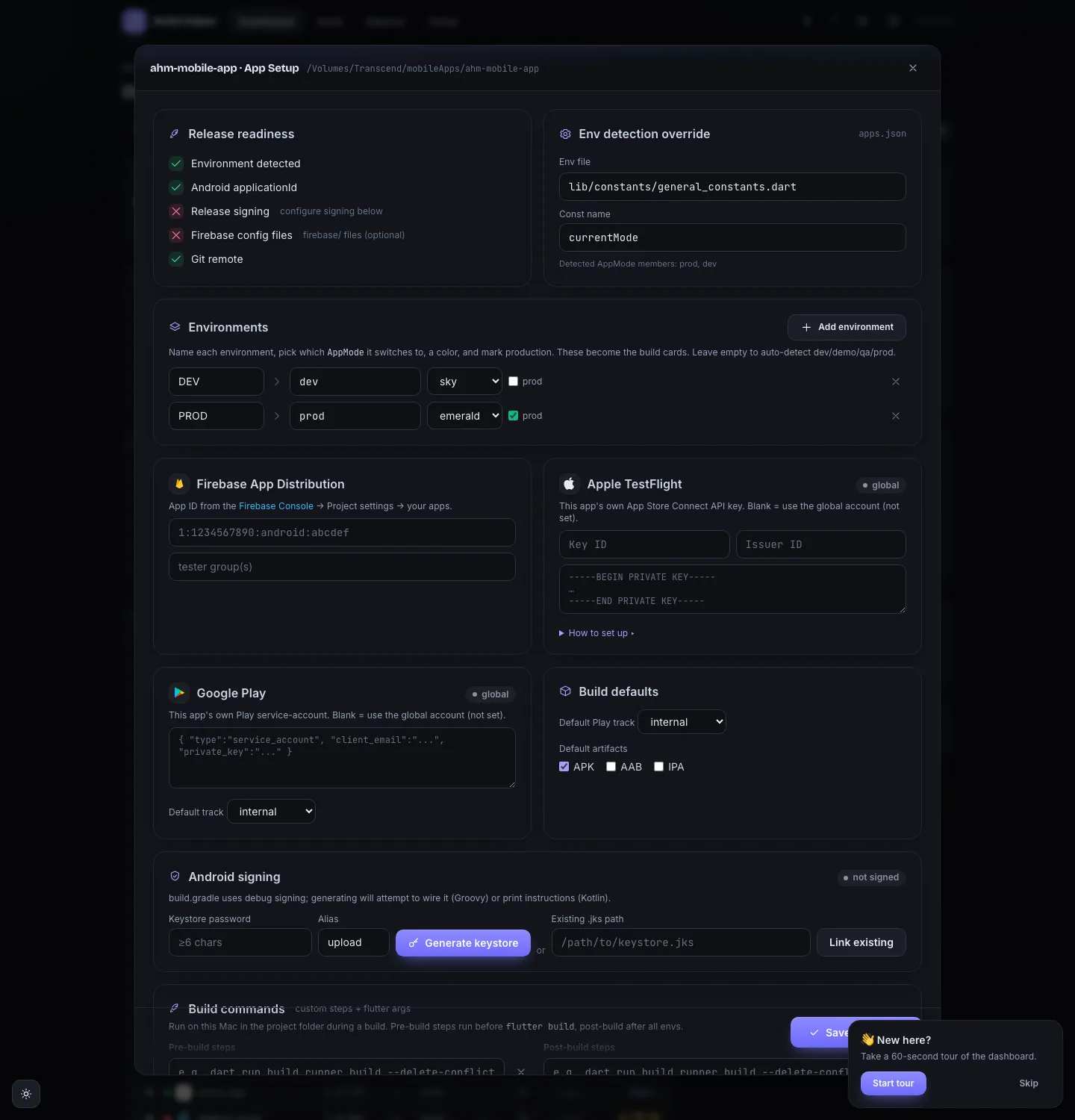
What it does. A per-app modal (from the dashboard Set up action or the build header App Setup button) — one scrolling page with sections for:
- Overview — a release-readiness checklist (env, signing, package id, icon, Firebase App ID, Apple/Play, OneDrive) and the Android signing shortcut.
- Environments — override the
AppModeconst name and env file, and define custom environments (key · label · AppMode member · color · prod). - Accounts — Firebase App ID, and per-app Apple / Google Play credentials.
- Build — flavor, extra build args, and pre-/post-build shell commands.
- Schedule — unattended scheduled builds (env · time · days · artifacts).
- Trackers — per-app issue-tracker credentials that override the shared ones.
- Groups — this app’s client email groups (used when emailing a build).
Scheduled builds
Section titled “Scheduled builds”What it does. A scheduler tick runs every minute and fires any per-app schedule whose day and time match now. Scheduled builds are build-only (no distribution) and bypass the interactive guards, since no one is watching to answer a prompt.
How to use it. Add schedules in App Setup → Schedule. Keep Build Helper (or the hub) running for them to fire.
Version and self-update
Section titled “Version and self-update”What it does. The nav ⬆ button shows the current version, how many
commits you’re behind the remote, and this tool’s recent changelog. Update
now runs git pull --ff-only; restart Build Helper (or the hub) to apply the
new code.
Release notes and issue trackers
Section titled “Release notes and issue trackers”What it does. For each release, Build Helper collects the commits since the last build of that environment, extracts issue keys (Jira and other configured trackers), enriches them, and appends them to the release notes it sends to your distribution channels. It can also group commits by conventional-commit type (feat / fix / …) into a tidy “What’s new”, and create a Jira “Mobile Release” work item.
How to use it. Each environment card has a release-notes box with fill buttons — Template, Commits (grouped conventional commits), and Tasks (commit-scraped tracker items) — plus a Jira button that opens a picker to search existing issues, tick the ones to attach, or create a new one. Configure trackers in the shared ⚙ settings gear; per-app overrides (in App Setup) take precedence over the global ones.
Git commit, tag, and changelog
Section titled “Git commit, tag, and changelog”What it does. A release can commit the version change, tag it
(<app>-v<version>), and optionally push. It maintains a local per-app changelog
(<app>.md) with each version’s notes, and links commit hashes back to
GitHub/GitLab/Bitbucket.
Dashboard, KPIs, and charts
Section titled “Dashboard, KPIs, and charts”What it does. The dashboard shows four KPI tiles — Projects, Builds (ok / failed), Artifacts (file count and total size on disk), and Last build — driven by range / project / env filters, alongside hand-rolled SVG charts: builds over time (stacked ok/failed), average build duration, upload health per target, and builds by environment. Below sits a project-health table: one row per app with its health dot, environment chips, version, last build, build count, a security grade (pulled best-effort from the Mobile Security tool), a favorite ★ toggle, and a Set up / Open action. Columns are sortable, rows are drag-to-reorder (persisted), and a density toggle switches compact/comfortable.
How to use it. Set the filters to slice the KPIs and charts. Click Open (or the app name) to build; Set up opens App Setup for an unconfigured app. Press ⌘K / Ctrl-K for a quick-jump palette over projects and actions, and the ? in the nav starts a guided tour. Use Refresh to rescan.
Reports
Section titled “Reports”What it does. A filterable view of your build history. Filter by date range (All time / 7 / 30 / 90 days) and environment. Export the filtered set as a CSV file, or open a printable HTML report and use Print / Save PDF.
How to use it. Open the Reports tab, set the filters, and click CSV or Print / PDF.
LAN install page
Section titled “LAN install page”What it does. Every artifact is downloadable over your local network. The
install page (/install?path=<artifact>) shows a QR code and a download button;
/artifact?path= serves the file itself, restricted to Build Helper’s own
artifacts folder so a phone can’t pull arbitrary files off the host. For iOS it
generates an itms-services manifest.
How to use it. Open the install page on a phone on the same Wi-Fi. Android installs directly (allow unknown sources); iOS ad-hoc needs an HTTPS URL (see the caution in Usage).
Android signing
Section titled “Android signing”What it does. From the Signing button on the Build screen you can
generate a release upload keystore (via keytool, stored in Build Helper’s
git-ignored data dir) or link an existing .jks. Either way it writes
android/key.properties and wires build.gradle for release signing (keeping a
.bak backup). For Kotlin-DSL build.gradle.kts it prints the exact snippet to
paste instead of editing automatically.
How to use it. Click Signing, then Generate (set a key alias and a password of 6+ characters) or paste the path to an existing keystore and click Link.
Doctor and Setup
Section titled “Doctor and Setup”What it does. The Setup tab has two parts:
- Doctor — checks Homebrew, Node, npm, git, Flutter, Xcode, CocoaPods,
rclone, and the Firebase CLI, shows each tool’s version, and reports free disk
space. Missing tools that are safe to auto-install show an Install button
(non-interactive, no
sudo). Run flutter doctor streams the fullflutter doctor -vreport. - Distribution connectors — connect OneDrive (rclone OAuth), or use the
shared team-folder mode (connect your own account and point uploads at a
folder an owner shared with you — add it to “My files” first, then enter its
path); log in to the Firebase CLI; save your Google Play
service-account JSON and default track; and save your Apple / TestFlight
Key ID, Issuer ID, and
.p8.
How to use it. Open Setup, run the Doctor, install anything missing, then connect the channels you plan to use.
Notifications and email
Section titled “Notifications and email”What it does. Build Helper can post a Slack/Telegram message on build start, success, failure, and size regressions. It can also email a build announcement to per-repo client groups (recipients ride BCC).
How to use it. Configure Slack/Telegram and email in the shared ⚙ settings gear.
Activity feed
Section titled “Activity feed”What it does. A live, cross-tab feed of build events (start / done / error / status) streamed over Server-Sent Events, with a short replay buffer so a tab that reconnects catches up.
Size-regression checks
Section titled “Size-regression checks”What it does. After building an artifact, Build Helper compares its size to the same artifact in the previous build of that environment. If it grew more than 15%, it logs a warning and fires a notification with the percentage.
Post-build security scan
Section titled “Post-build security scan”What it does. After a successful build, Build Helper asks the Mobile
Security tool (default http://localhost:4110) to scan the project and logs the
resulting grade. It’s best-effort — if the Security tool isn’t running, the build
still succeeds and it just notes that it was skipped.
Storage cleanup
Section titled “Storage cleanup”What it does. Build Helper keeps every built artifact under its data dir. A cleanup action removes artifacts older than a chosen number of days (default 30), optionally scoped to one project, and reports how much space it freed.